How to Create Teams and Add Employees
Discover how to effortlessly create teams and add employees in IMPACT, facilitating efficient organization and collaboration for enhanced performance management.
📽 Check out our video tutorial on creating teams and adding employees in IMPACT
📝 Here is a step-by-step guide on creating teams and adding employees in IMPACT
- Navigate tohttps://app.plai.team/
- On the left-side panel, click "All teams"
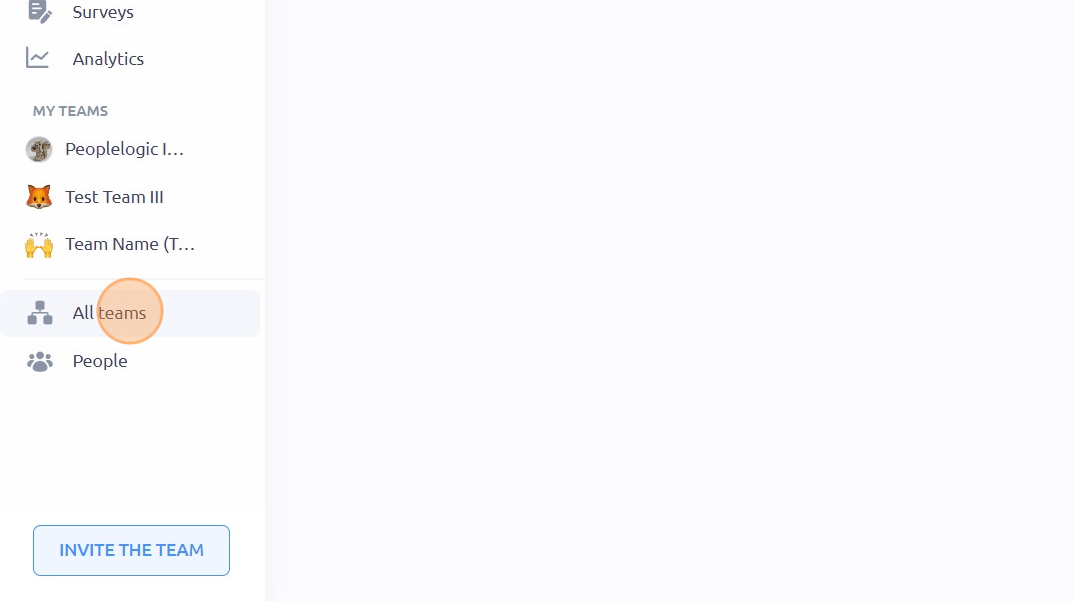
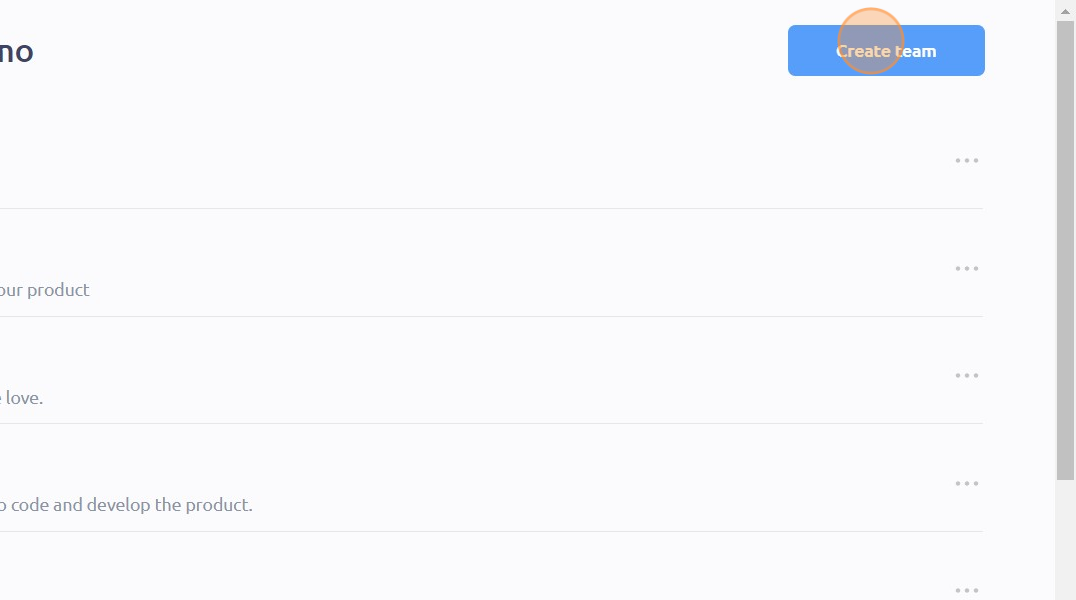
- Click "Create team"
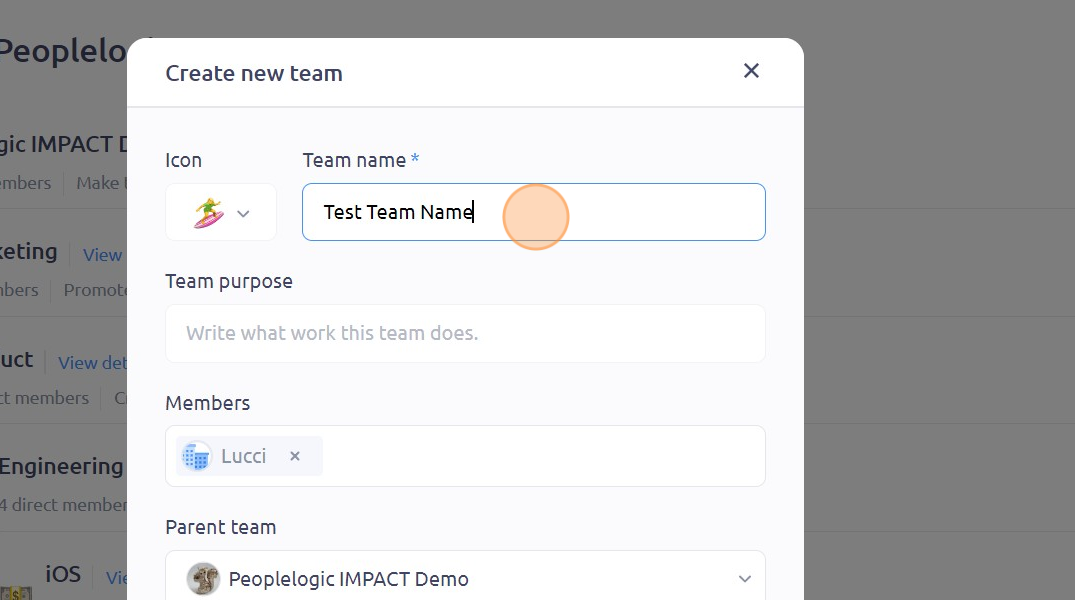
- Click the "Team name " field and type in your desired team name
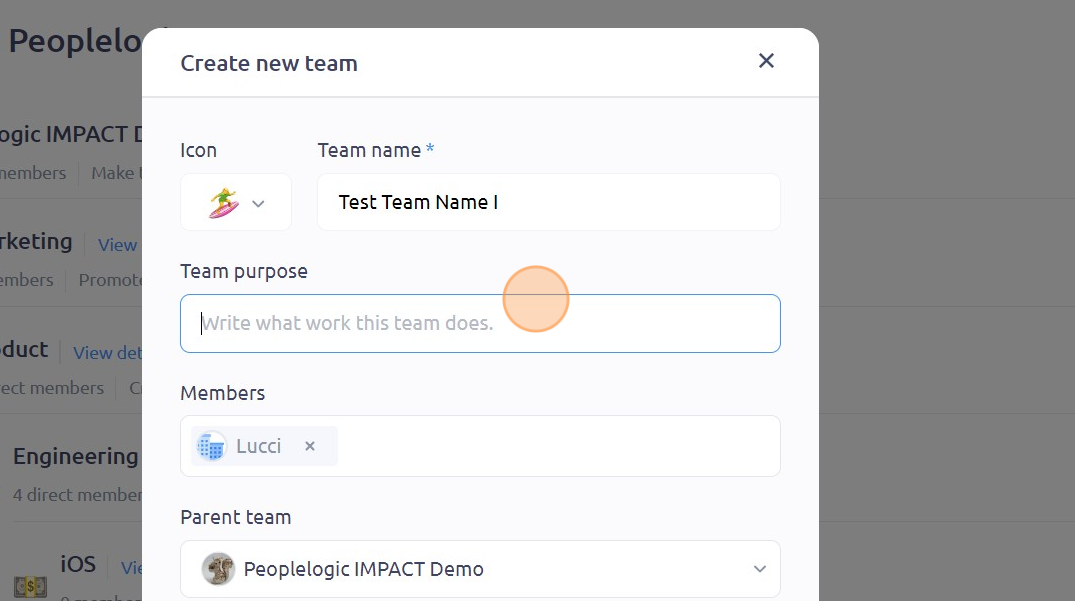
- Click the "Team purpose" field to add the Team Purpose
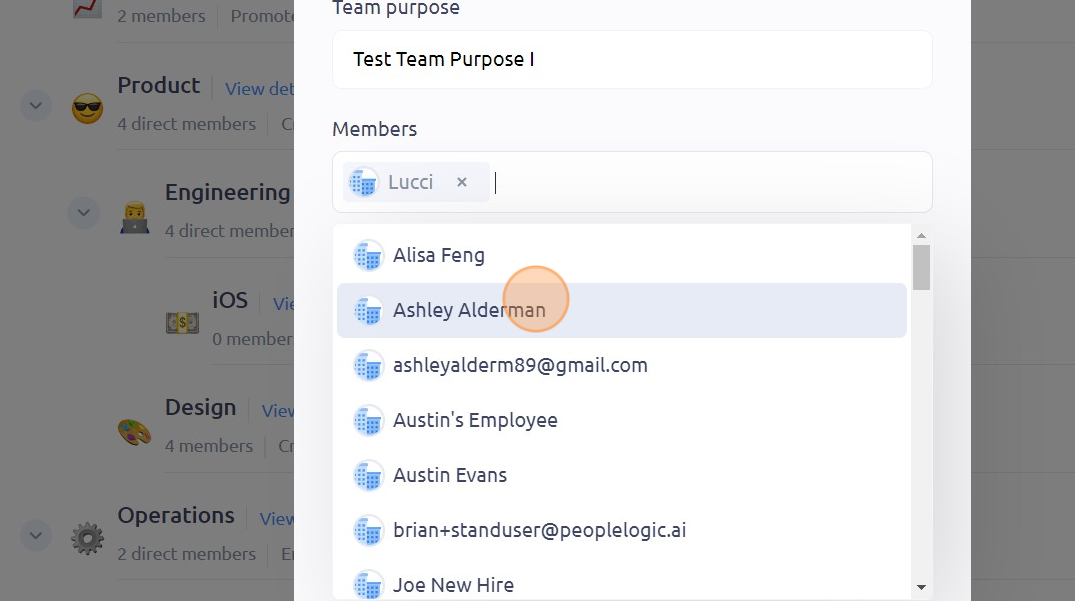
- Click on the "Members" field to add team members and select the desired members from the drop-down menu
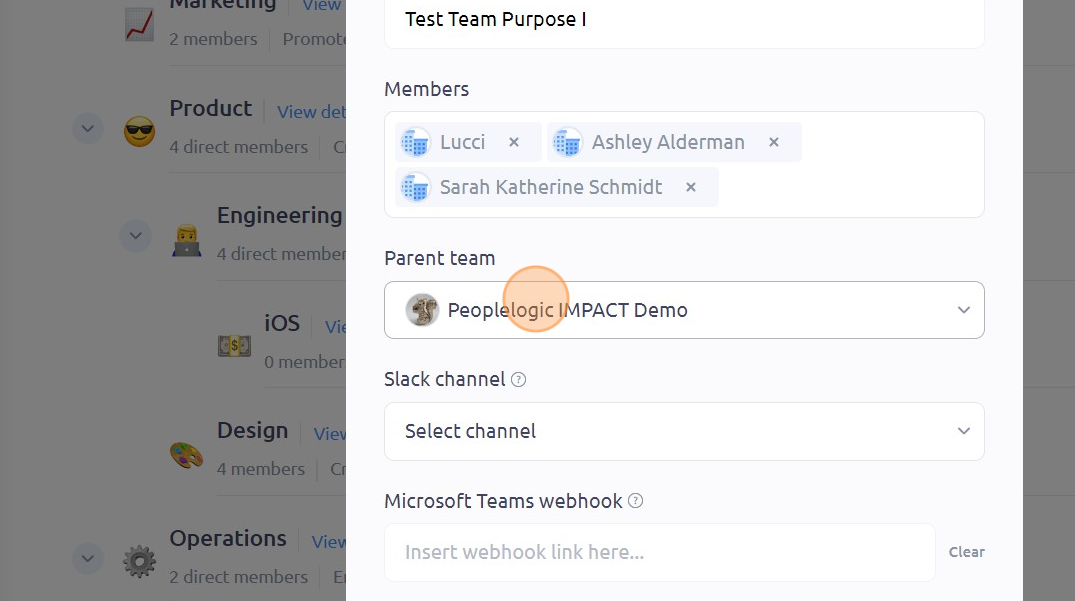
- Click on the "Parent team field" to modify and select your desired parent team
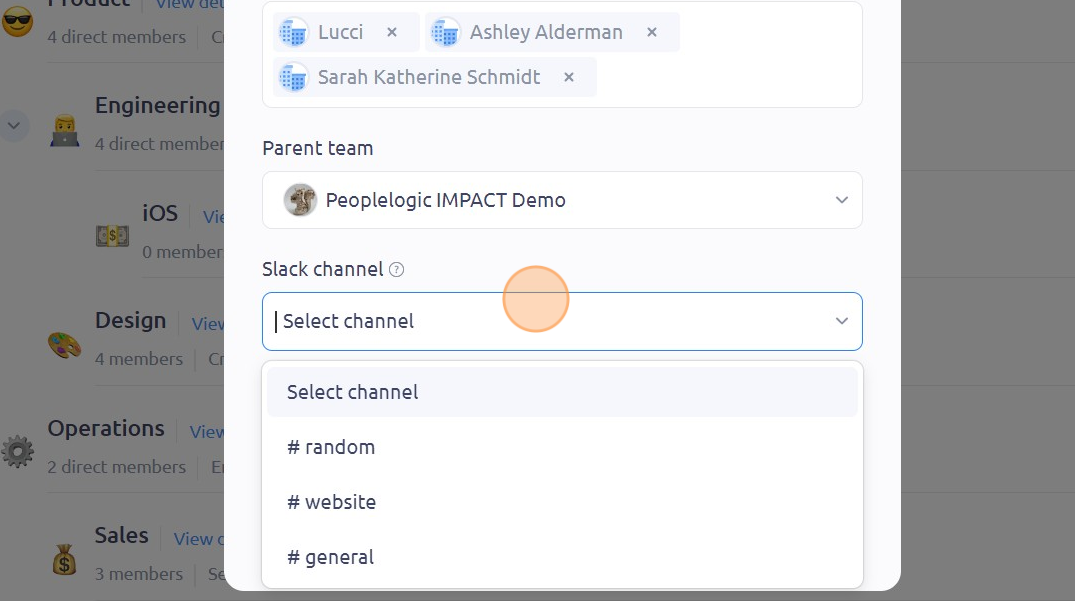
- You can also add a Slack channel. Simply click on the "Slack channel" field and choose your desired channel
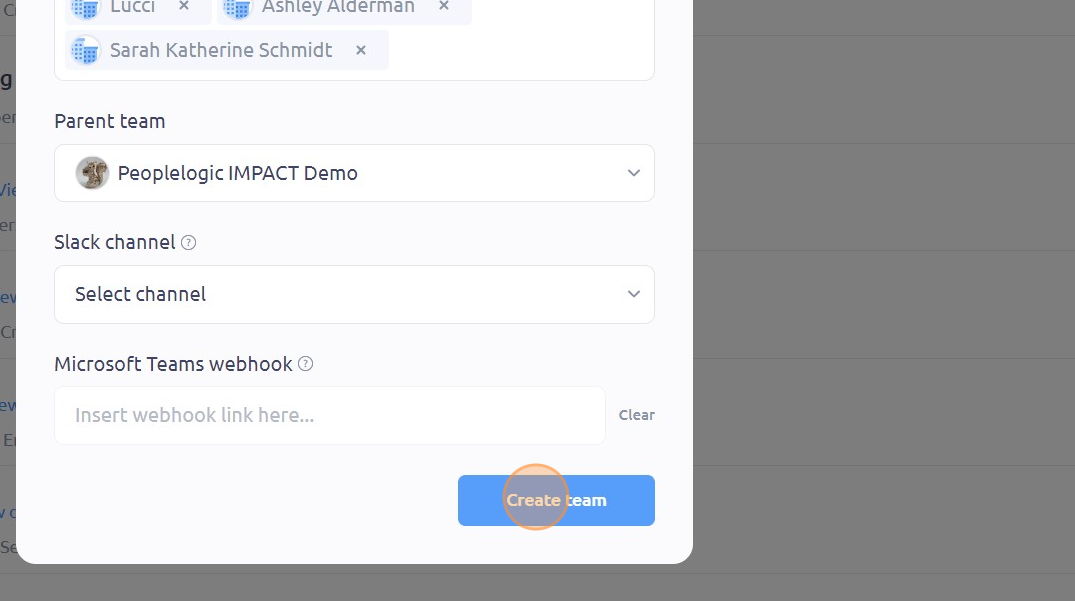
- Once done, click "Create team"
- To manage and update your people in teams, navigate to and click "People" on the left-side panel
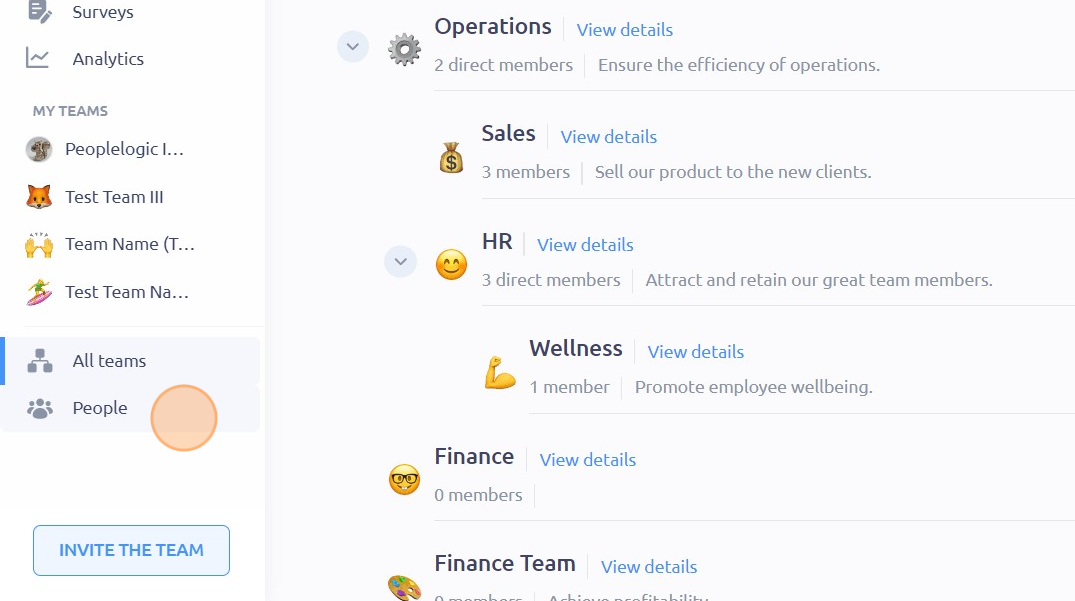
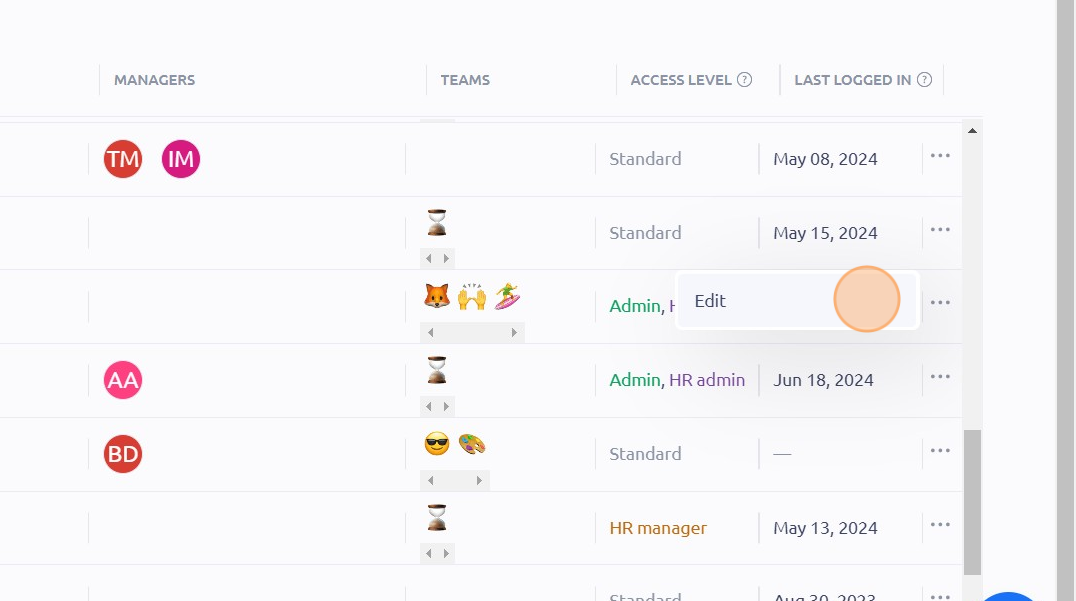
- Navigate to the person whose information you want to update, click on the three-dot icon next to their name, and then click "Edit"
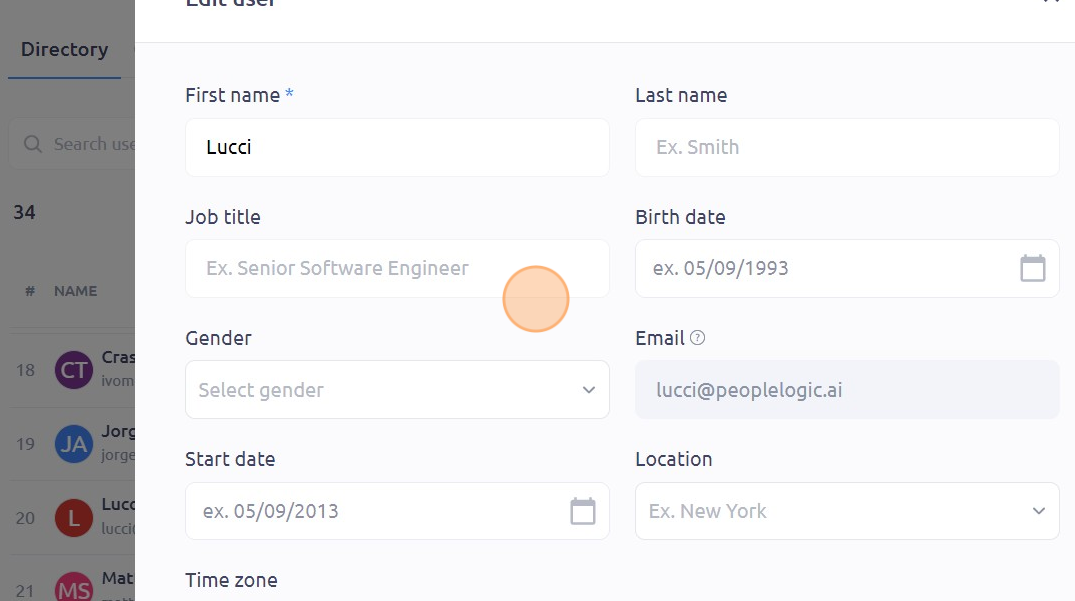
- Update the desired information, such as job title, birthdate, gender, or other details, by clicking on their respective fields
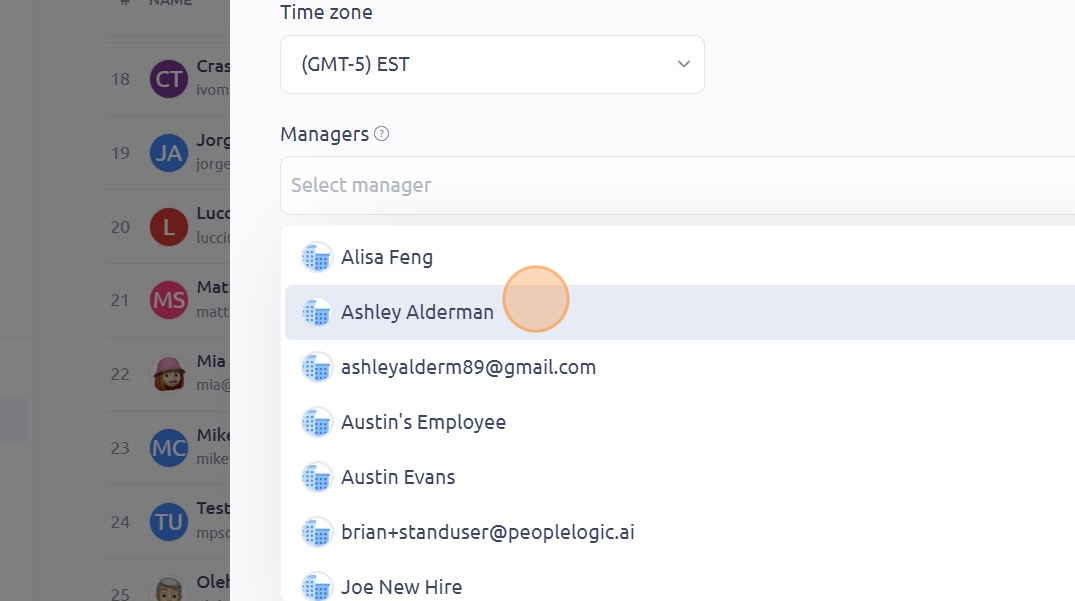
- To add a manager, click on the "Managers" field
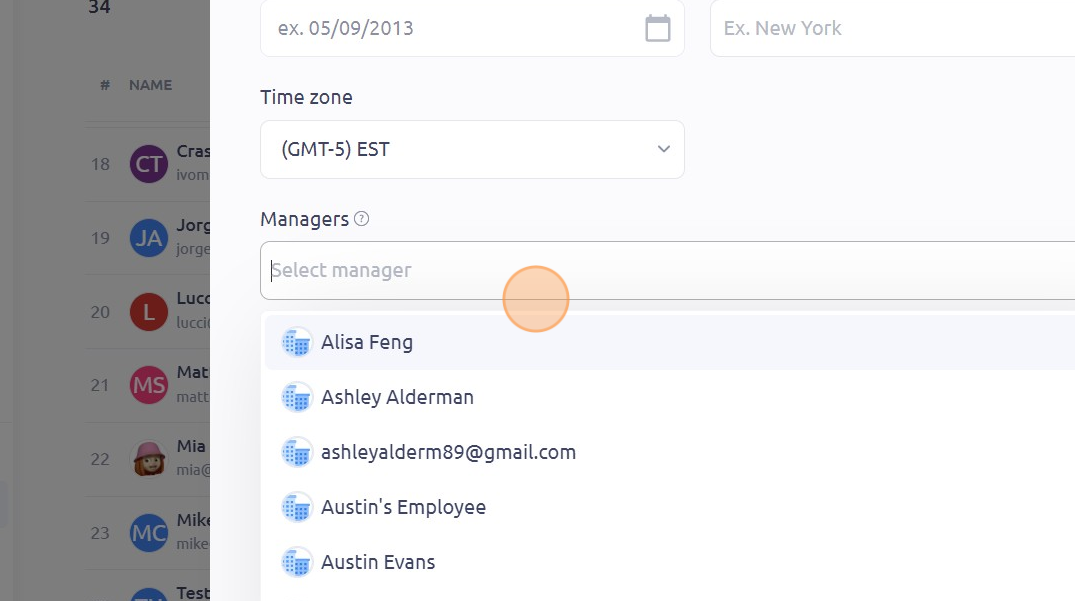
- Select the desired manager for that specific employee
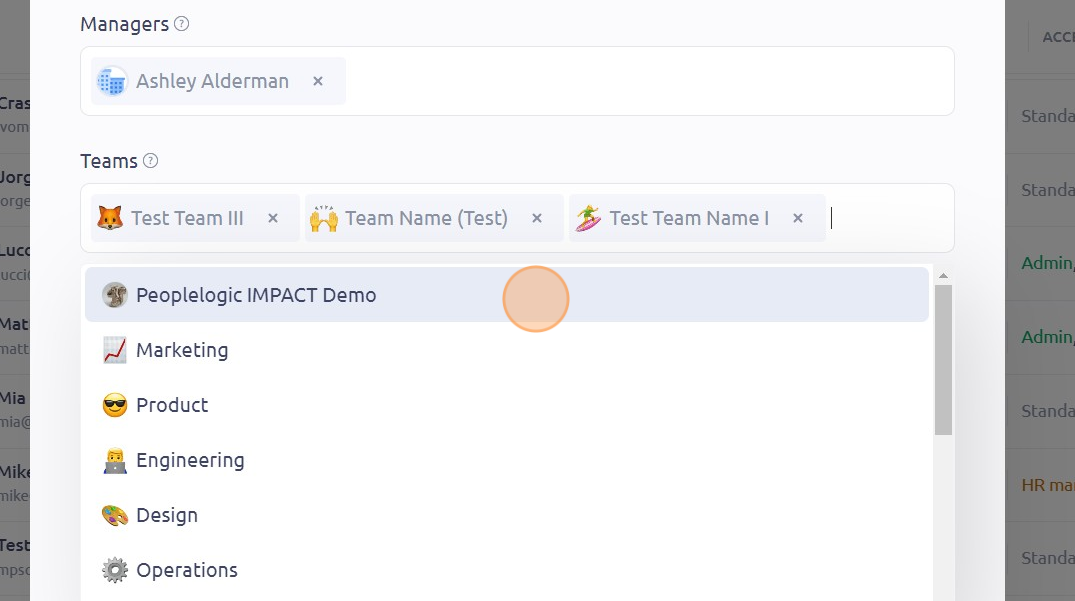
- You can also add or modify the teams for this specific employee by clicking on the "Teams" field. Select the desired teams from the drop-down menu
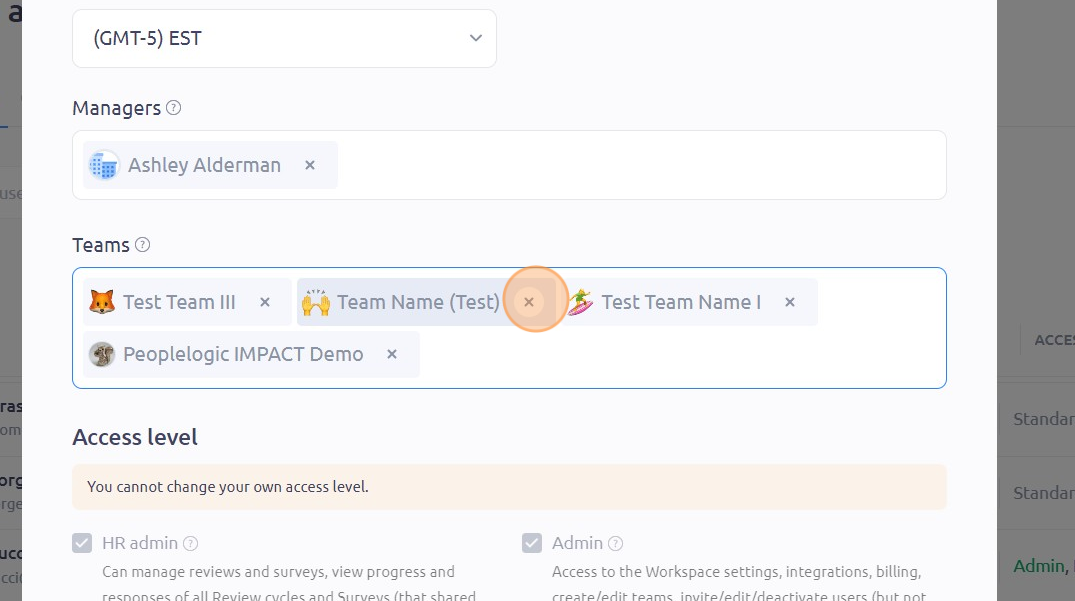
- To remove a team, click the "x" icon next to the team you want to remove.
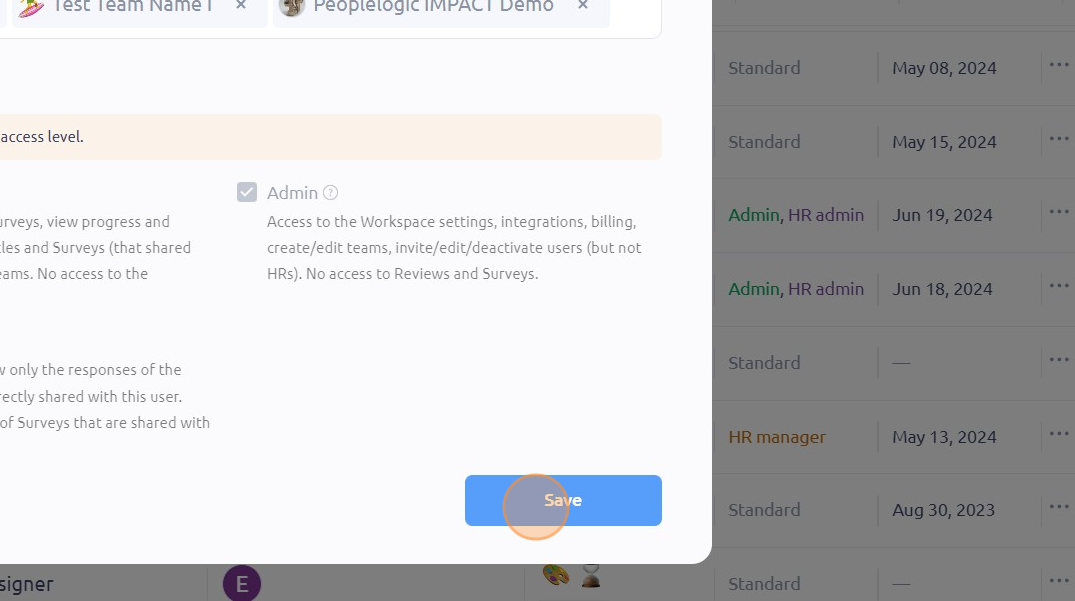
- Click "Save"
To see it in action, please visit Peoplelogic Learn.
Updated on: 07/05/2026
Thank you!