Salesforce Integration
Last updated: April 28, 2026
How to setup Salesforce integration
Peoplelogic/Impact now supports integration with Salesforce to automatically update OKRs.
This process is separated into two parts:
A. Add the API credentials to the Workspace Settings
B. Add Salesforce connections to key results
Part A, add Salesforce credentials to Workspace settings
Go to Workspace Settings in the dropdown menu.
Select Integrations
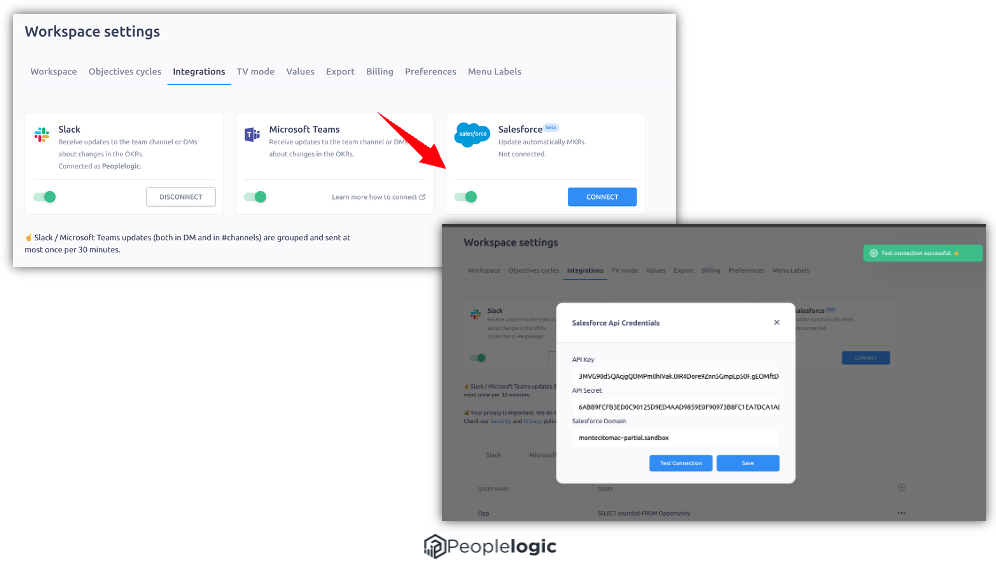
In the Integrations tab, activate the toggle inside the Salesforce card and click Connect.
On the pop-up window, insert your Salesforce api credentials:
API Key
API Secret
Salesforce domain
Click Test Connection, if the result is a Success, click Save
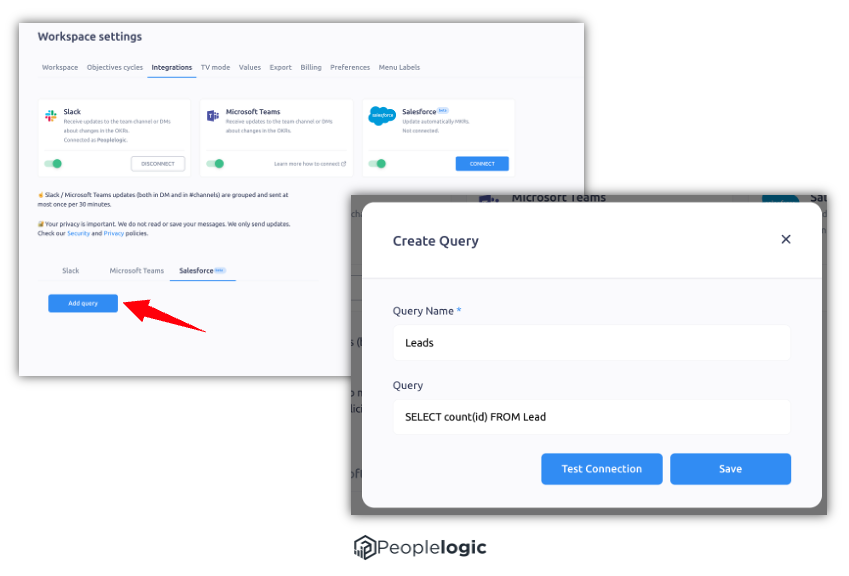
Now, on the lower part of the page, select the Salesforce tab.
Click on Add query button.
On the pop-up window, insert a name for the query and the command.
It is important to use the same language used on Salesforce.
After adding the name and the query, click Test Connection and if successful, click Save.
To add more queries, click on the plus button (+) and repeat steps 8 and 9
Part B, add Salesforce connection to kery results
Go to the objective details
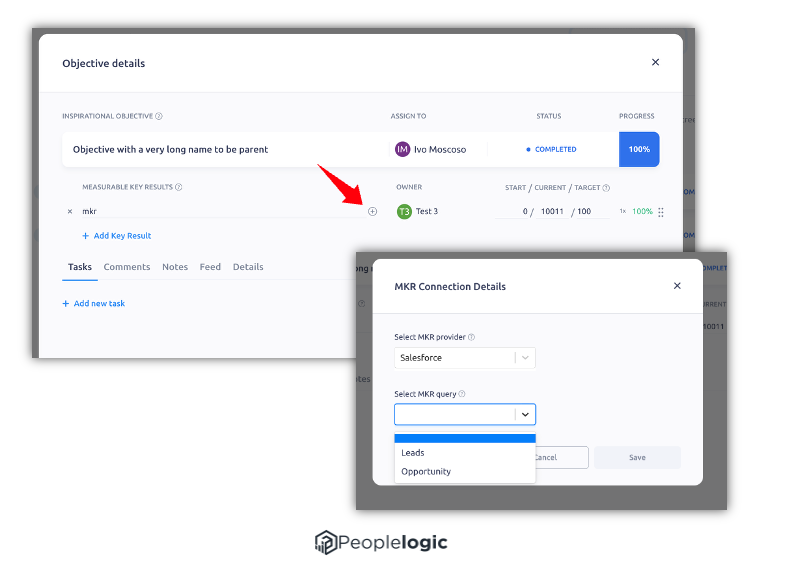
In the Key result, hover the mouse over the key result and click on the plus button (+) that appears
On the pop-up window, select Salesforce as the MKR provider and the query on MKR query.
Click save
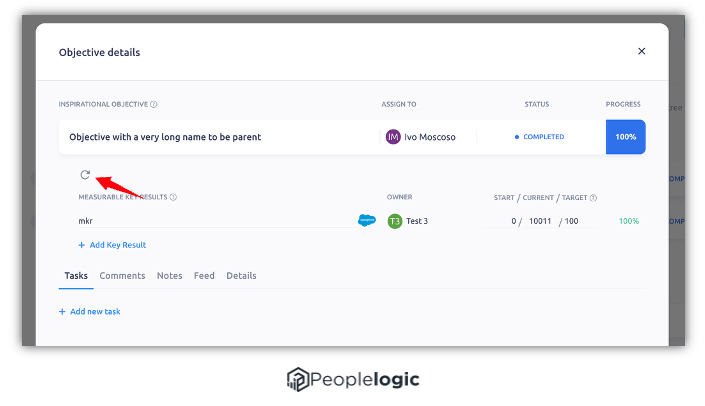
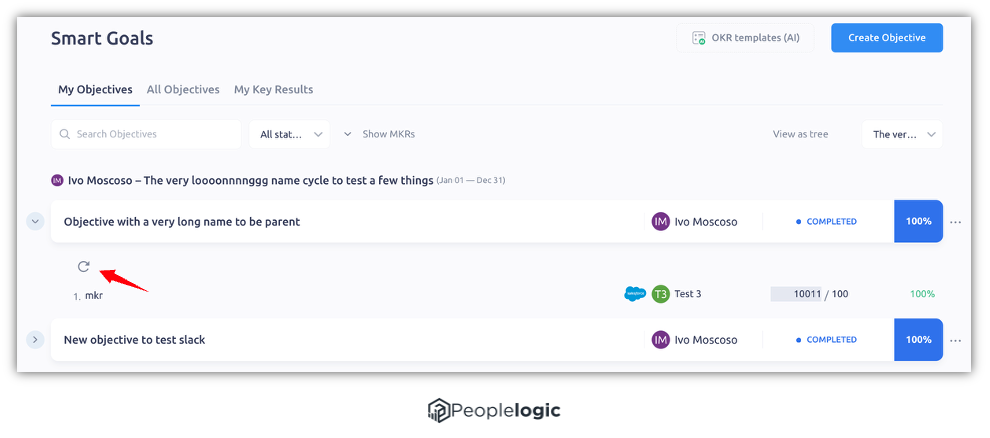
Now the Salesforce icon appears at the end of the key result row.
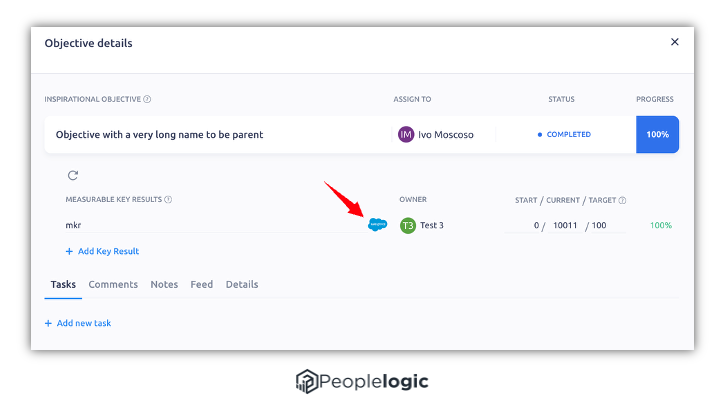
Now it is not possible to manually edit the Current field from the MKR, but it is possible to edit the Target and the Start
To update it manually, click the round arrow icon above the key results, this will update all key results in that objective. The system is programmed to automatically update all results on a daily basis.