Add employees to reviews according to their tenure
Last updated: October 14, 2025
Set a review to automatically add new users according to their tenure.
On the "2.Participants" page of the review building, on the review recipients filter, select "Specific teams, users, or locations". In this filter, select the tenure filter.
Add the time window that matches the desired tenure, for instance, between 4 and 5 weeks. This will automatically add all employees in the workspace who match this criterion. Additional filters can be added, such as team or location.
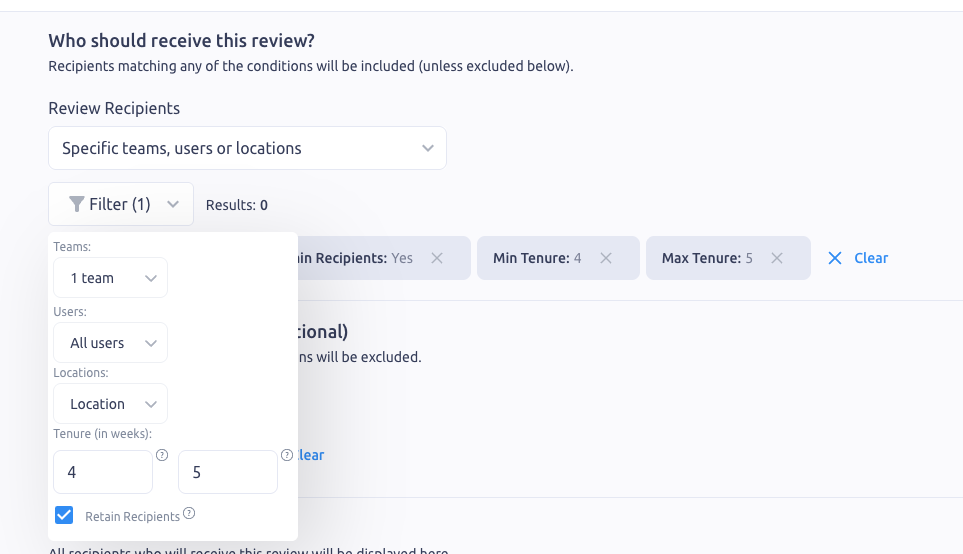
Keep in mind that when an employee passes this time frame, they will be removed from the review, and their responses will be lost. Check the "Retain Recipients" box to keep recipients beyond the time frame.
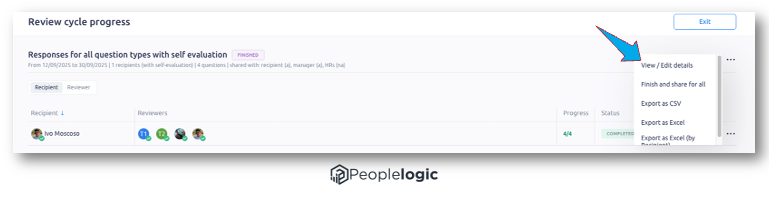
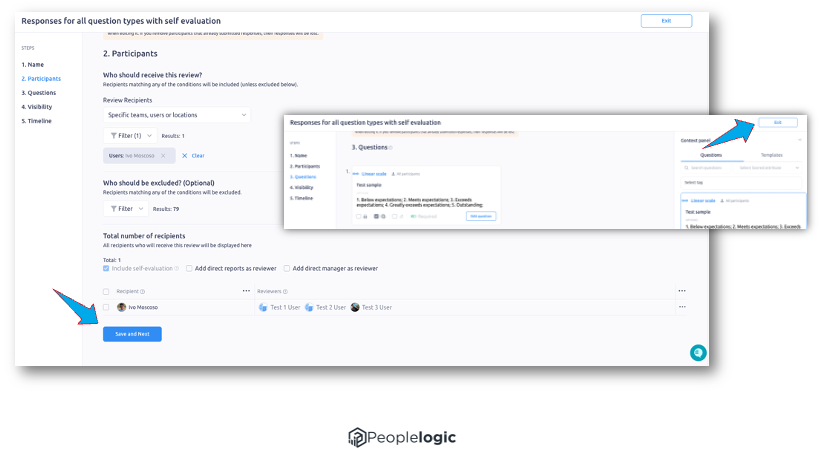
To update the list of participants, just enter the review participants page periodically. To do so, enter the review details in the review progress page, click "View/Edit details" in the 3-dot menu, select "2.Participants" page, and click "Save and Next" and "Exit" on the next page.